
Send emails from Moodle using Brevo
Setting up Moodle to use Brevo’s transactional email service for outgoing emails can significantly improve email deliverability and reliability. In this guide, we’ll walk you through the steps to configure Moodle’s outgoing email settings, ensuring that your emails are sent efficiently and effective

Setting up Moodle to use Brevo’s transactional email service for outgoing emails can significantly improve email deliverability and reliability. In this guide, we’ll walk you through the steps to configure Moodle’s outgoing email settings, ensuring that your emails are sent efficiently and effectively using Brevo. Whether you’re managing a small online course or a large educational institution, this setup will help streamline your communication and keep your learners informed.
Get Brevo SMTP Key
Moodle allow to use SMTP values for outgoing emails using any email service. Since, we are using Brevo, we need Brevo SMTP key and other information to send emails from Moodle.
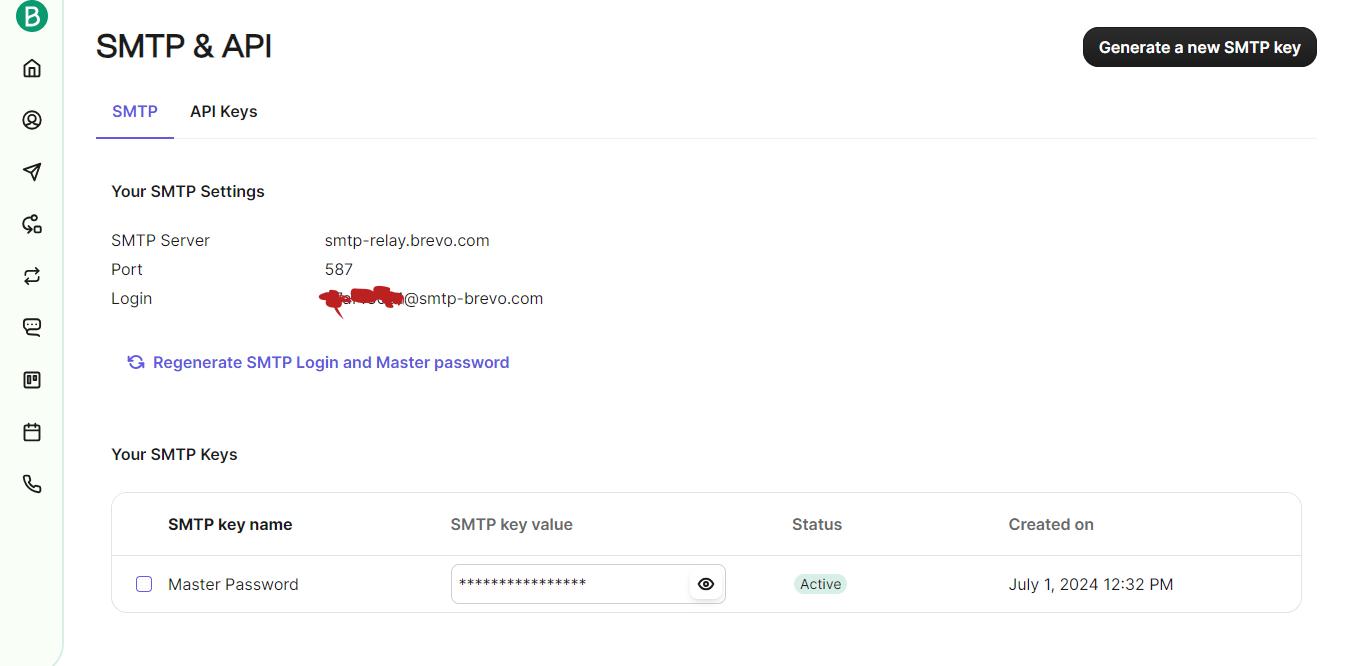
After login to Brevo account visit this page
https://app.brevo.com/settings/keys/smtp
On this page, you will see these values: SMTP server, Port, Login and a SMTP Key Value.
Outgoing mail configuration in Moodle
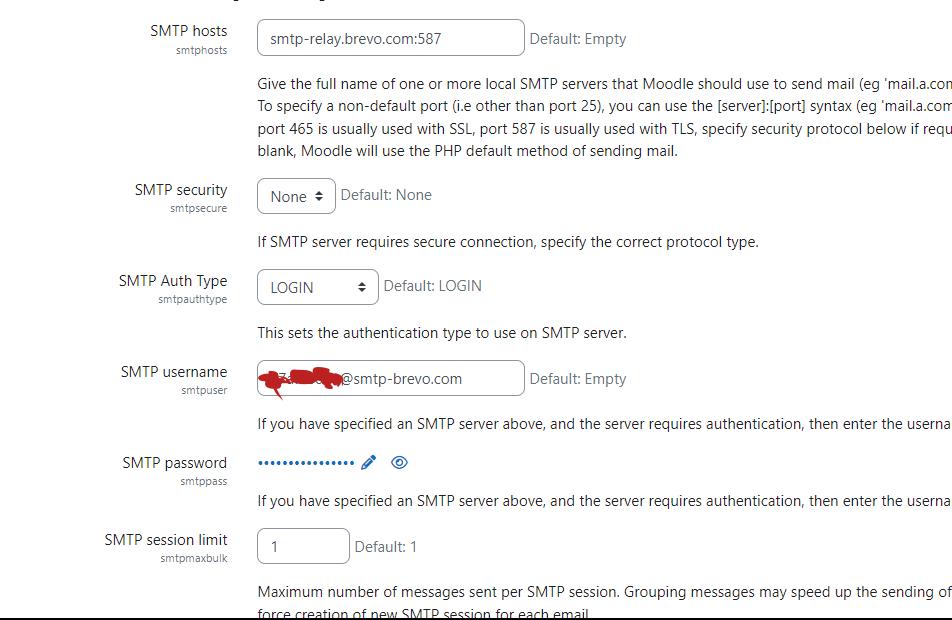
Visit Site Administration > Server > Outgoing mail configuration
SMTP hosts will be SMTP server:port
SMTP security will be None
SMTP Auth Type will be LOGIN
SMTP username will be Login value from Brevo
SMTP password will be SMTP Key Value
SMTP session limit will be 1
Image presents a screenshot of Moodle Outgoing email configuration using brevo settings.
With these settings you will be able to send emails from Moodle.
Need help with your Moodle?
Would you rather not manage SMTP, deliverability, and server settings yourself? Our fully Managed Moodle Hosting sets up outgoing email, backups, updates, and security for you — with a 7-day free trial, no card required.
Related Moodle guides
Hide the first section of a Moodle course