Why Your Moodle Isn’t Sending Emails (And How to Fix It Properly)
Moodle cannot send email on its own — and it fails silently, so password resets, enrolment notices and forum posts just vanish. Here is why it happens, which mail service to use, and how to set up SMTP properly.
Here’s a situation I see constantly. Someone sets up Moodle, creates their first course, adds a few students — and then nothing happens. No welcome emails. No enrolment notifications. A student clicks “forgot password” and waits forever for a reset link that never arrives.
The Moodle install is fine. The server is fine. Nothing is broken.
Moodle simply cannot send email on its own, and nobody tells you this.
I had this exact conversation recently with someone setting up a trial. He’s been in software for thirty years, installs Moodle himself, knows his way around a server completely. And he hadn’t thought about email either — not because he lacked the skill, but because it’s invisible until it bites you. That’s what makes it worth writing about.
Moodle doesn’t have a post office
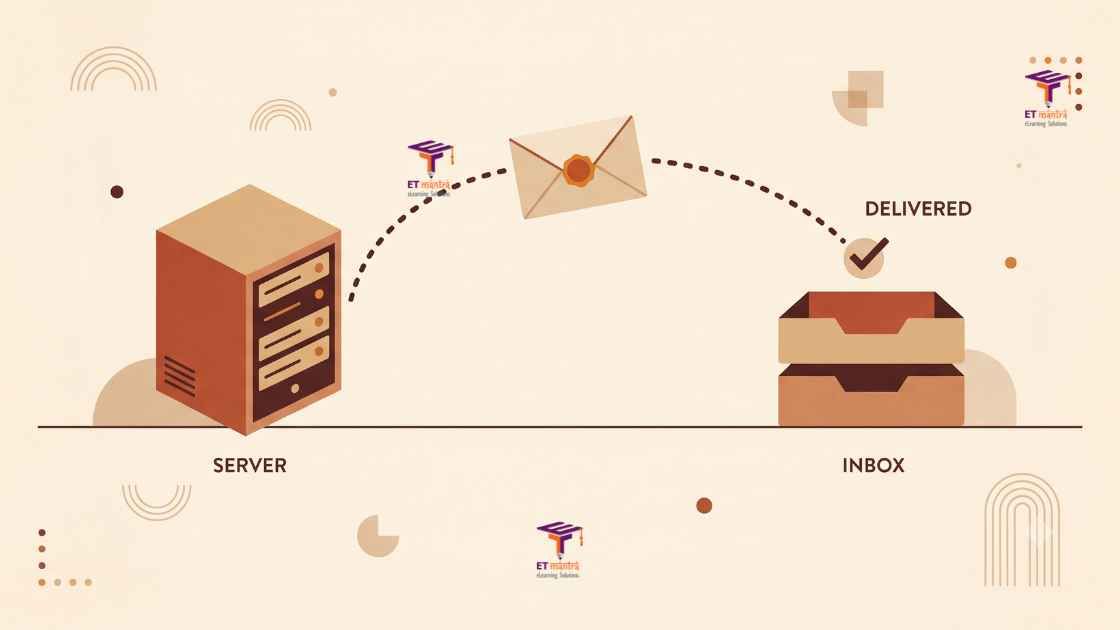
Think about what actually happens when software sends an email. It needs something to hand the message to — a mail server that accepts it, then delivers it onward to Gmail, Outlook, or wherever your student’s inbox lives.
Moodle has no such thing built in. It’s an application, not a mail server. What it has is a setting where you tell it which mail server to use. That’s what SMTP is: the protocol Moodle uses to hand your message to a real mail service that does the actual sending.
Leave that setting empty and Moodle falls back to whatever the server offers by default. On most modern hosting, that’s nothing at all — so the mail vanishes silently. No error on screen, no warning in the admin panel. Moodle behaves as if it sent the email, and the message simply never exists.
Silent failure is the worst part. A crash you’d notice. This you don’t, until a student tells you they never got their password reset — and by then it’s been happening for weeks.
What actually breaks when email doesn’t work
It’s tempting to treat this as a minor thing to sort out later. It isn’t, because a surprising amount of Moodle depends on it:
• Password resets. The big one. Every “forgot password” click is a dead end, and every one becomes a message to you instead.
• New account confirmation. If you use email-based self-registration, students literally cannot complete signup — the confirmation link never arrives.
• Enrolment notifications. Students aren’t told they’ve been added to a course.
• Forum posts and subscriptions. Your discussion forums go quiet, because nobody knows anything was posted.
• Assignment feedback and grade notifications. Students don’t know their work has been marked.
• Course announcements. You post to the announcements forum expecting everyone to see it. Nobody does.
Notice the pattern: none of these produce an error. Your Moodle looks perfectly healthy while quietly failing at half of what makes it useful. You end up doing manually — over WhatsApp, over phone — everything the platform was supposed to do for you.
Where to send your mail from
So you need a mail service. There are three sensible options, and the right one depends on what you already have.
Your institute’s existing email
If your school or institute already runs Google Workspace, Zoho Mail, or Microsoft 365, start here. You’re already paying for it, and mail comes from your own domain — so students see an address at your institute rather than something unfamiliar. That recognition matters more than people expect: unfamiliar senders get ignored, or worse, marked as spam.
The catch is sending limits. A standard Gmail or Google Workspace account allows roughly 500 messages a day. For a small institute that’s plenty. For 2,000 students where a single forum post triggers a notification to everyone, you’ll hit that ceiling on your first busy day — and once you do, the rest of the day’s mail is simply refused.
One more Gmail quirk worth knowing: it won’t let you send from a different “From” address than the account you authenticated with. Whatever address you log in as is the address your students see, no matter what you type into Moodle’s no-reply field.
A transactional email service
This is what I’d recommend for most institutes running real numbers of students. Services like Brevo, Amazon SES, or similar exist specifically to send application email at volume, with far higher limits and much better deliverability than a personal mailbox.
They also give you something Gmail won’t: visibility. You get a dashboard showing what was sent, what was delivered, what bounced, and what got marked as spam. When a student insists they never received anything, you can actually check instead of guessing.
Most have a free tier that comfortably covers a small institute. I’ve written a step-by-step guide to setting up Brevo with Moodle if you want to follow one end to end.
Your host’s SMTP
Many hosts, including us, will let you use their mail service to get you going quickly. It’s the fastest option — nothing to sign up for, no DNS to configure.
But be clear about the trade-off: mail goes out from the host’s domain, not yours. For a trial, or while you’re evaluating, that’s completely fine. For an institute building its own brand, you want your own domain on those emails eventually. Treat it as a starting point, not the destination.
Where the setting lives
Once you’ve picked a service, the configuration is in one place:
Site administration → Server → Email → Outgoing mail configuration
You’ll need four things from your provider: the SMTP host (with port — usually 587 for TLS or 465 for SSL), the username, the password, and the security type.
Two fields on that page cause most of the trouble.
The no-reply address. This is who your email appears to come from. It must be an address your mail service is actually allowed to send as — otherwise the service rejects the message outright. With Gmail, this needs to match your SMTP username exactly.
Authentication. If you’re using Gmail or Google Workspace, your normal password will not work. Google requires an App Password — a separate password generated specifically for applications like Moodle. This trips up more people than anything else on the page, and the error message doesn’t explain it.
After saving, Moodle gives you a “Test outgoing mail configuration” option on the same page. Use it. Send yourself a test before you assume it works — it takes ten seconds and saves you finding out through an angry student.
When it still doesn’t arrive
Say the test passes but real emails still don’t turn up. A few things to check, in order.
Look in spam first. Especially with a brand-new domain, the first messages often land there. If they do, the fix isn’t Moodle — it’s your domain’s SPF and DKIM records, which tell the receiving server that your mail service is authorised to send on your behalf. Every transactional service documents exactly what to add. Skip this and your mail will keep landing in spam no matter how correct your Moodle settings are.
Check whether cron is running. This is a genuinely sneaky one. Moodle doesn’t send most notifications the instant something happens — it queues them, and a scheduled task called cron actually sends them. If cron isn’t running, your SMTP settings can be perfect and mail still won’t move. Forum digests, notifications, scheduled reports — all of it depends on cron. On managed hosting this is set up for you; on a VPS you configure it yourself, and it’s one of the most commonly forgotten steps.
Check your sending limit. If mail worked this morning and stopped by afternoon, you’ve likely hit a daily cap. That’s the Gmail ceiling showing up in practice.
Check the actual error. Under Site administration → Reports, and in your server’s mail logs, you’ll usually find the real reason — authentication rejected, connection refused, address not permitted. It’s more useful than guessing.
Do this on day one
If there’s one thing to take from this: set up email before you add a single student.
It costs fifteen minutes at the start. Discovering it later — after students have been failing to reset passwords for a fortnight, after a whole cohort missed an announcement — costs you trust that’s much harder to rebuild than a config page.
It’s the first thing we set up on every Moodle we host, and it’s on our setup checklist for exactly this reason. Whichever route you choose, do it before your learners arrive, and send yourself that test email.
Quick answer (TL;DR)
• Moodle cannot send email by itself. It needs an SMTP service, and until you configure one, mail fails silently.
• What breaks: password resets, account confirmation, enrolment notices, forum posts, grade notifications, announcements — with no error anywhere.
• Best options: your institute’s existing email (simplest, ~500/day limit), a transactional service like Brevo or Amazon SES (best for real volume, gives you delivery visibility), or your host’s SMTP (fastest, but sends from their domain).
• Where: Site administration → Server → Email → Outgoing mail configuration.
• Gmail needs an App Password, not your normal one, and the no-reply address must match the account you authenticate with.
• If mail still doesn’t arrive: check spam, set up SPF and DKIM, and make sure cron is running — most notifications don’t send without it.
• Do it before your first student joins, and always send the test email.
Related reading: what Moodle actually needs to run well, and what Moodle hosting really costs in 2026.