Open-Sankore – A Free Software for Smart Board or Interactive Board
Smartboard, also known as interactive board, is being used in institutions. Interactive board allows a teacher to use hands for interaction (click, scroll, zoom, etc.) which remove the dependency on input tools like a mouse or digital pen tablet. This feature of smart board allows a teacher to use a
Update, 2026: Open-Sankoré itself is no longer being developed — but it is not gone. It lives on as OpenBoard, a maintained fork that is still free, still open-source, and still built for exactly this job. OpenBoard is currently at version 1.7.7 and is maintained by the Department of Public Education of Geneva, Switzerland, with support from the University of Lausanne. If you came here to download Open-Sankoré, OpenBoard is what you actually want. Skip to the 2026 download guide below.
The original 2017 article follows, unchanged — the features described below still apply, since OpenBoard inherited them from Open-Sankoré.
Smartboard, also known as interactive board, is being used in institutions. Interactive board allows a teacher to use hands for interaction (click, scroll, zoom, etc.) which remove the dependency on input tools like a mouse or digital pen tablet. This feature of smart board allows a teacher to use an interactive board as a traditional board but with the smart features.
Smartboard uses touch detection for user input that means a teacher can click on a button with the help of finger. So we can say that software limits the capability of a smart board. If a software doesnot has a feature to drag objects than you can’t do that on a smart board. It also means that a software can increase the capabilities of a smart board.
All we need is a software that provides a pen to write on smart board with the finger, highlighter to highlight a portion of smart board, a ruler that can be used freely, Google maps to teach geography, animation to make learning enjoyable.
In this article, I will introduce a free software for interactive board specially designed for teachers. Hope you will find this article useful.
Open-Sankore
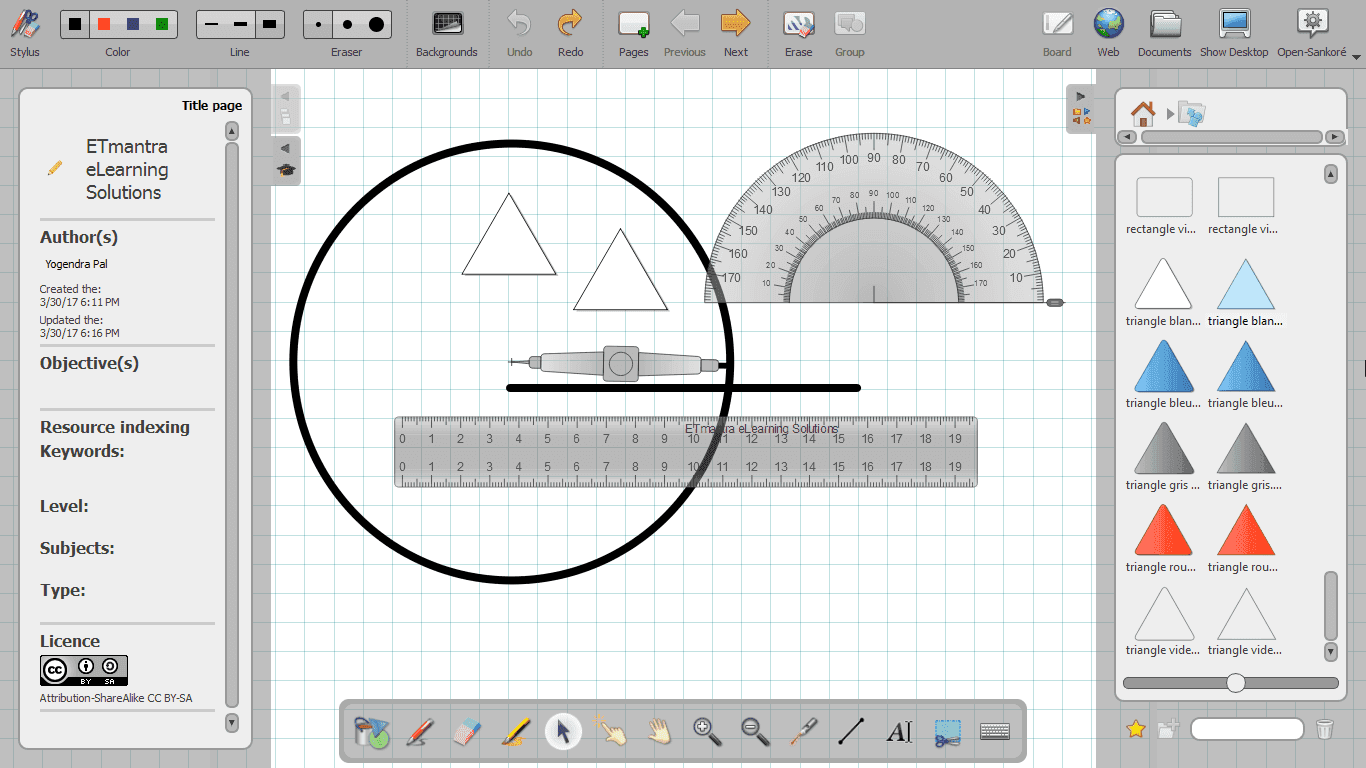
Open-sankore is a free and open-source software designed for teachers to use with interactive board. It has almost everything required to teach in a classroom. It runs in a full screen mode and hides everything on your computer screen this allows you to use more area for teaching. Below is the screenshot of open-sankore running on Windows operating system. You can see that it does not have a title bar and also hides the task bar of operating system.
Important links
- Open Sankore Website (update 18 Jan 2018: The website is not accessible)
- Download Open Sankore from GitHub repository
- Download Open Sankore from OpenBoard.ch
Features of open-sankore
I am listing most of the features of open-sankore so that you can decide whether it is suitable for you or not.
1. Designed specially for teachers
There are software, designed specially for smart board but this one is special because it is designed with the help of teachers for teachers. It do not only allow to write, draw and delete from smart board but it also gives you traditional teaching tools and ICT tools like Google maps that can be used in a classroom.
2. An ergonomic interface
Designed for the efficiency. It has a lot of tools with many options, but you will not find it difficult to find a tool or reach to a tool. It makes it number one choice for teachers as you don’t want to spend all your time in searching tools or struggling with how to use a tool. Instead, you will spend your time only in teaching and make study interesting for students.
3. A comprehensive set of tools
The tools, provided in open-sankore, can be divided into two sets traditional tools and ICT tools. Let’s have a look at them.
Traditional teaching tools
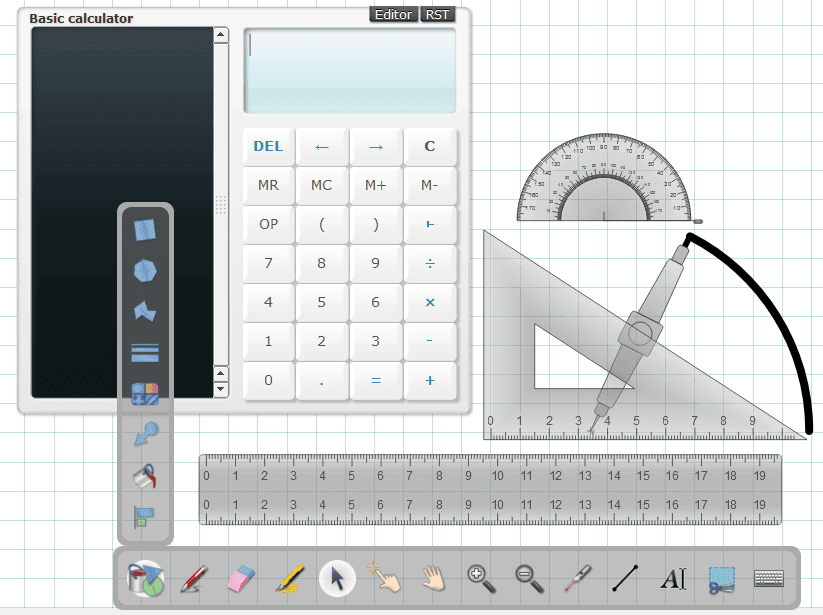
Traditional teaching tools are the tools that you use in a classroom without a computer. For example, pen, pencil, rubber, ruler, compass, calculator and many others. Some of these traditional tools are shown in the image given below.
ICT Tools
You are aware of the fact that teaching is not only provided by these traditional tools, but we also use information and communications technology (ICT) tools in teaching. A geography teacher might use Google maps, a math teacher can use mathematical function drawing program. Almost all teachers use internet, audios, videos, images and animations. These all tools are integrated into open-sankore.
If you want to visit a website you can use integrated web browser; similarly, you can embed YouTube and Vimeo videos in open-sankore. You can upload your audios, videos, images and flash animation files in open-sankore.
4. Support for Google map and Wikipedia
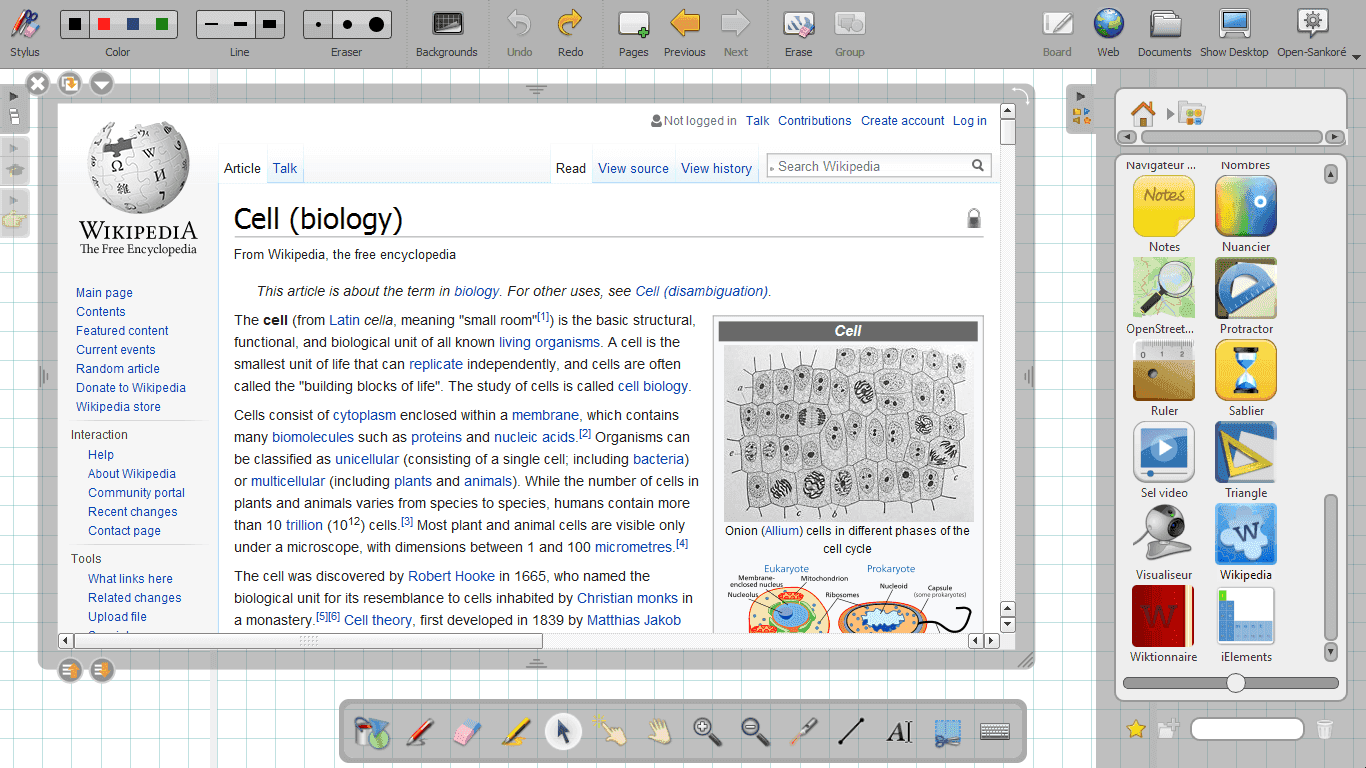
below is the snapshot of Wikipedia used inside open-sankore.
5. Create ScreenCast
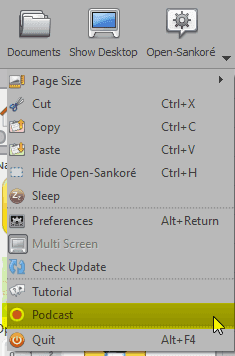
If you create educational videos or want to record everything you teach in class. You do not need to use another application to record screen. Open-Sankore has an inbuilt podcast recording feature. With this option, you can record all your activities on open-sankore with audio and save it as a video on computer or publish it directly on YouTube.
6. Annotate desktop
Open-sankore also allows you to use all its tools on the desktop. This feature is useful if you want to draw on desktop or any other application on your computer. I used it to annotate code::blocks compiler while teaching programming in a workshop.
7. Import ppt and pdf
Sometimes you create learning material in PowerPoint slides or pdf. You can import these files in open-sankore and use all features of open-sankore on these files to teach effectively. Each page of ppt or pdf loads in a separate page of the open-sankore document. You can also import images, iweb files, folder of images in open-sankore.

8. Document Sharing
Once you finish teaching, you can share the open-sankore file in shareable formats. Open-sankore allows you to export the document in pdf format. You can also share open-sankore files directly to sankore web. The podcast saves as shareable video format which can be uploaded to various video sharing sites or your server.
9. Automatic document backup
When you start working on open-sankore software, it automatically saves your document with DD-MM-YYYY HH:MM:SS name. Your document remains available on open-sankore even if you do not save it. All documents, you worked on, can be found under Documents menu, available at the top-right corner of the software.
10. Everything in one software
Open-sankore team integrated everything in one software. Web, audio, video, animation and teaching tools all are available in one software. It means you do not need to switch to another application while teaching with open-sankore. If you have ppt or pdf you can import it in open-sankore and if you want all sets of features to remain available in desktop then you can switch to desktop mode. You can also record ScreenCasts from open-sankore.
It automatically saves all your documents. Open sankore is available in multiple languages for Linux, MAC, and Windows. The latest version as on 30 March 2017 is 2.5.1 which can be downloaded from here. Download and install it on your machine and let me know how do you find it.
Important note: Although Open-Sankore is for interactive board but you can use it with touch screen laptops or digital pen tablets as well.
This article is written in response to the question asked by Mr. Alok Dwivedi. His question is give below:
How to use presentation software for smart board? – Alok Dwivedi
I hope this article will be helpful to you. Let me know about your views in comments.
Open-Sankoré in 2026: use OpenBoard instead
When this article was written in 2017, Open-Sankoré was actively developed. That is no longer the case — the official downloads are unreliable and the software has not kept pace with modern Windows and macOS releases. Teachers who search for it today usually end up on a dead link.
The good news: the project was forked, and the fork is thriving. OpenBoard branched from Open-Sankoré 2.0 back in 2013 (Open-Sankoré itself grew out of an earlier project called Uniboard). The fork deliberately stripped away some of Sankoré’s more complicated features to focus on being simple, stable, and fast in a real classroom. It is released under the GPLv3 licence and remains completely free.
What carried over — and what changed
Almost everything this article praised about Open-Sankoré is still there in OpenBoard: the pen and highlighter, the shapes and ruler tools, writing over your desktop or any application, importing PDFs and PowerPoint slides, the built-in web browser for pulling in Google Maps or Wikipedia, screen recording, and automatic saving of your lesson documents.
What changed is mostly under the hood. OpenBoard runs on modern libraries, so it installs and runs cleanly on current operating systems. A handful of Sankoré’s rarely-used extras (some of the widget and podcast-publishing features) were removed to keep the software stable. For day-to-day classroom teaching, you are unlikely to miss them.
Downloading OpenBoard in 2026
The current release is version 1.7.7, available for all three desktop platforms from the official download page:
• Windows — requires Windows 10 or later. Download the installer (OpenBoard_Installer_1.7.7.exe) and run it like any normal program.
• macOS — download the .dmg file. Note that OpenBoard 1.7.7 requires macOS 12 or later.
• Linux — an official Debian 12 package is provided, plus community-maintained builds for Ubuntu, Arch, openSUSE and Flatpak.
You do not need to register, create an account, or pay for anything. There is no trial period and no locked features — it is genuinely free software, funded by a public education department.
Still running an older classroom PC? Every past release is archived on the OpenBoard GitHub releases page, so you can pick a version that matches your machine.
If Windows blocks the installer
The most common problem teachers report is Windows SmartScreen showing a blue "Windows protected your PC" warning when the installer runs. This happens because the installer is not code-signed with a commercial certificate — not because anything is wrong with the file. Click "More info", then "Run anyway". If your school laptop is locked down by an administrator, you will need IT to approve the install.
A second common issue is the pen or touch input not registering on the board. That is almost always the board’s own driver rather than OpenBoard — install the driver from your board manufacturer first, confirm touch works on the Windows desktop, then open OpenBoard.
Your old Sankoré lessons
If you built lessons in Open-Sankoré, they are stored as .ubz document files. Because OpenBoard shares Sankoré’s ancestry, it can generally open these — import them through OpenBoard’s Documents view rather than trying to open the file directly. Complex pages that used Sankoré-only widgets may need tidying up, so it is worth checking your most important lessons before you rely on them in class.
Back up your .ubz files before you migrate. Copy the whole Sankoré documents folder somewhere safe first — that way nothing is lost if an import does not go to plan.